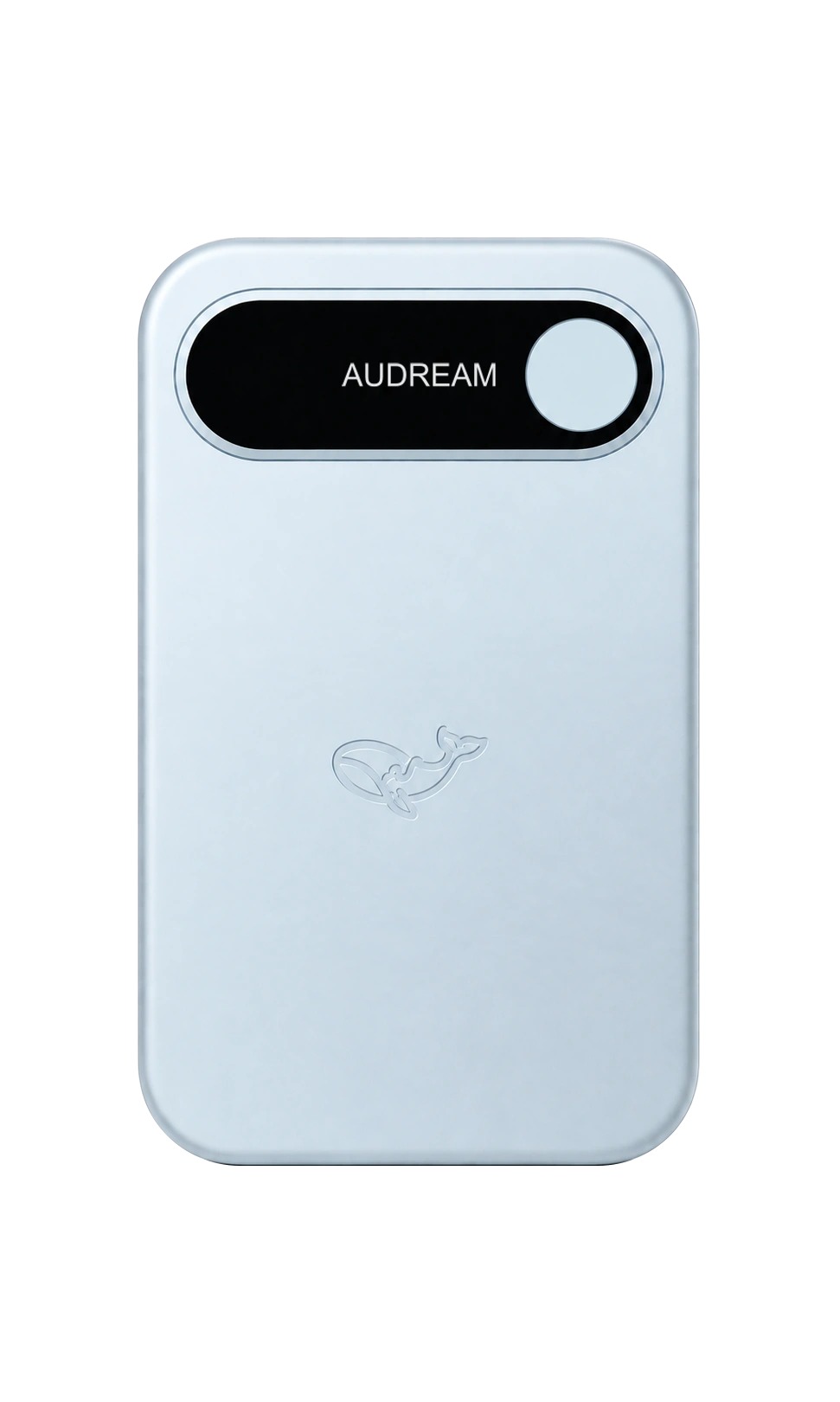
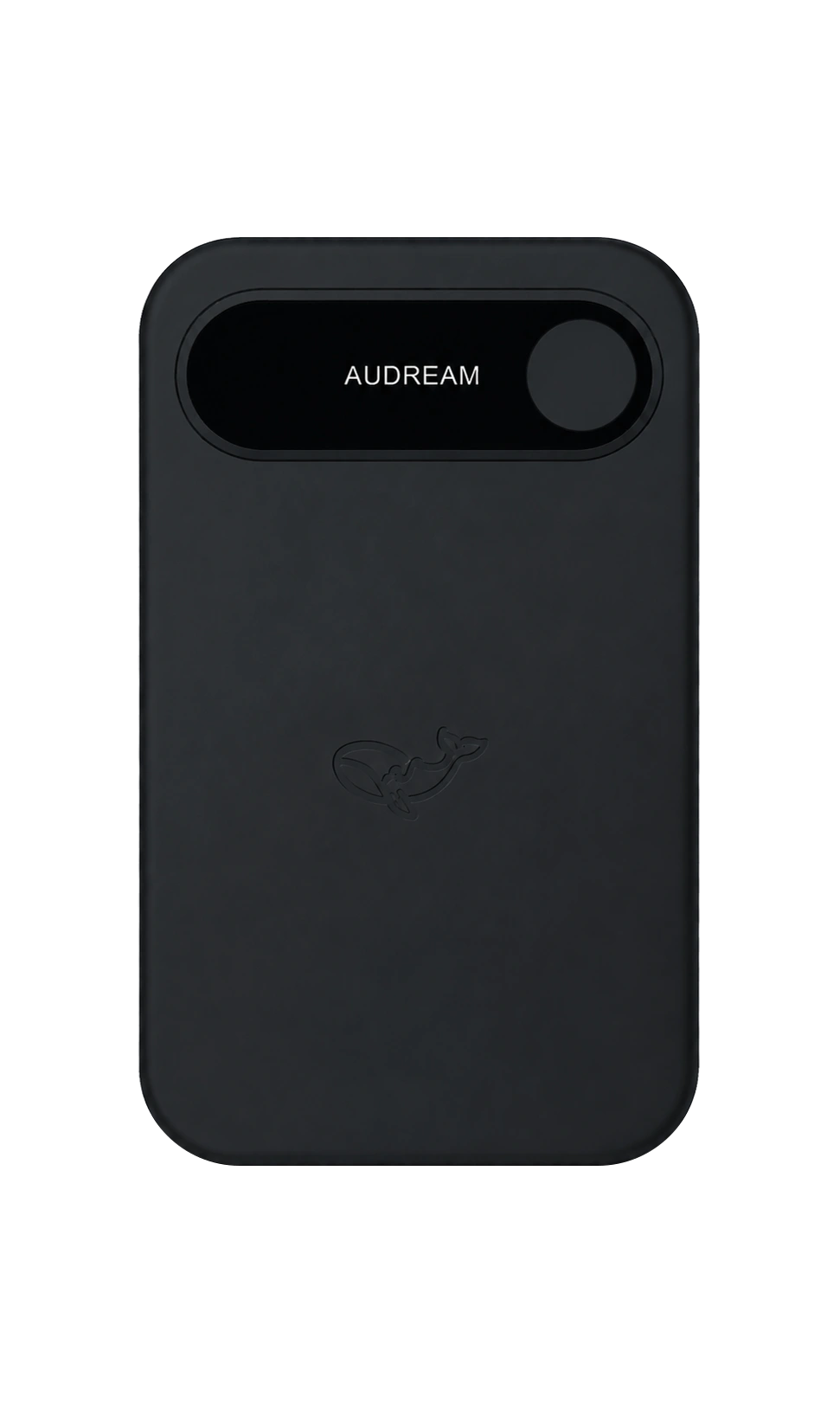
Front views identify the design, not the location of a charging connector. Use the model details and instructions supplied with your device; do not infer a port or accessory from these images.
ON THE FRONT
Look to the screen.
The circular front control is for recording. Check the screen for recording feedback; a decorative light effect is not part of this design.
NOTE PRO / SIDE CONTROL
A separate job. A separate control.
The side control is dedicated to the power-bank function. Use the instructions for your model before enabling it; recording-button click patterns are not a substitute.
BEFORE YOU RELY ON IT
Start with a short test.
01
Agree on the recording
Tell participants what you intend to record and how it will be used. Keep confidential material out of a test recording.
02
Check the device
Confirm your model, charge it with the matching connection, then use the operating instructions supplied with that device. Button timing and pairing steps can depend on its firmware.
03
Make a short test
Check the recording status on the screen. End the test using your device instructions and confirm that it can be played back before relying on it for an important conversation.
04
Review the source
Keep the original recording. In Audream Web, import audio you are permitted to use and review available transcripts and summaries against that source before sharing.
Note and Note Pro share the approved front design. Their charging connections and bodies differ. The front image alone is not a guide to ports, thickness or supplied accessories; check your model information.
Does the recording button need a triple click?
Do not infer a click sequence from an illustration. Follow the instructions supplied with your device and firmware. Note Pro has a separate side control for its power-bank function; this guide does not prescribe a timing sequence.
Where are pairing instructions and firmware updates?
Check the instructions supplied with your recorder and verify the appropriate app release through the apps page. No firmware file or confirmed pairing sequence is distributed by this guide.
What if I cannot find a recording?
Keep the device and original files as they are while you check the model, account and app version involved. Do not reset or erase a device as a first troubleshooting step. Contact support with the steps you took, without attaching private audio.
STILL UNSURE?
A little context helps.
Tell us the model, the step you reached and what happened. Keep private content out of your first message.